
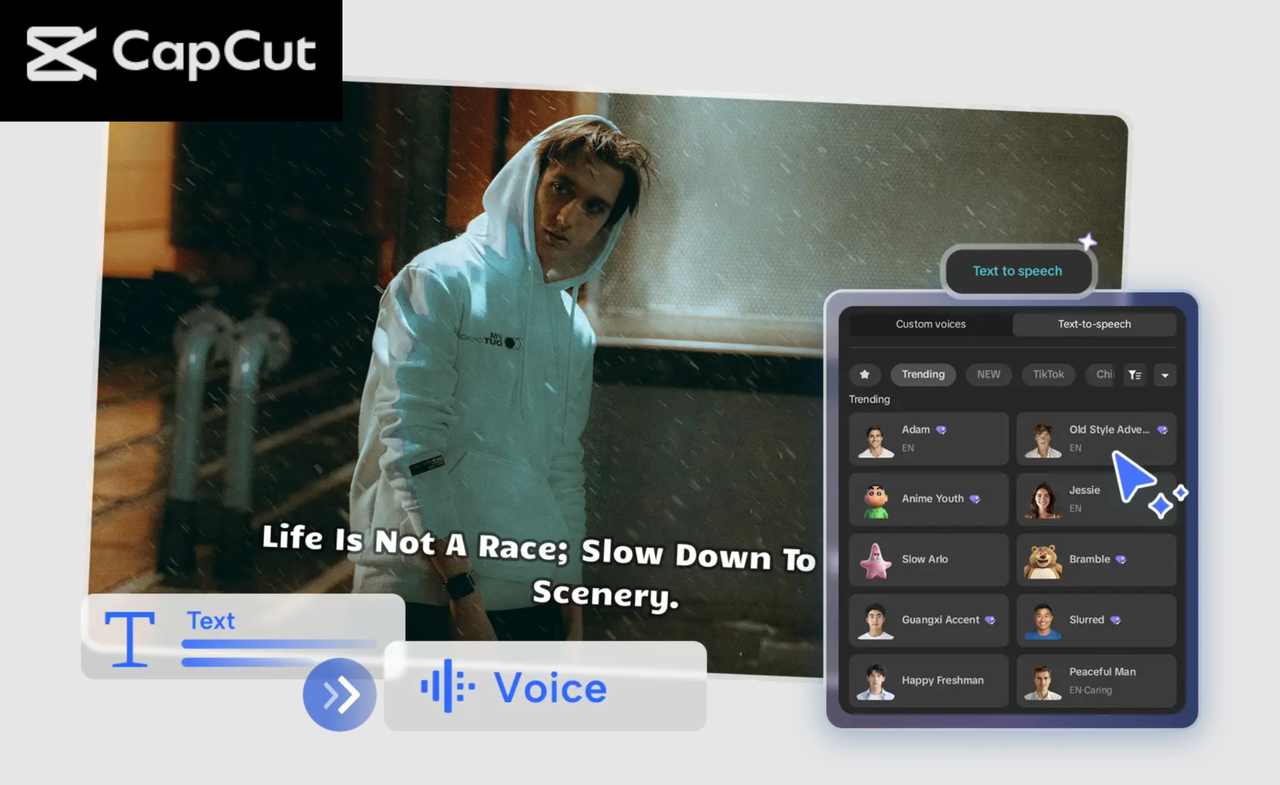
If you’ve ever written a script that felt flat, dull, or simply not expressive enough, you’re not alone. Many creators struggle to turn their ideas into lively, polished videos—especially when recording voiceovers isn’t their strong suit. CapCut Text to Speech AI feature can instantly elevate your videos by giving your script a clear, emotional, and natural-sounding narration without requiring a microphone or studio setup.
Whether you’re making tutorials, commentary videos, storytelling clips, explainer content, or short-form social media posts, CapCut’s Text to Speech tool helps you transform boring scripts into engaging voiceovers that hook your audience from the first second. The voices are realistic, expressive, and available in tons of styles—energetic, friendly, emotional, deep, professional, cartoonish, and more. With just a few clicks, you can turn your plain text into powerful audio.
Why CapCut Text to Speech AI Makes Scripts More Engaging
Here’s why so many creators choose CapCut’s built-in narration tool:
Gives Emotion to Flat Scripts
Even the simplest lines sound better with the right voice tone. CapCut’s AI voices add emphasis, rhythm, and clarity, keeping your audience engaged.
Saves Recording Time
You no longer need to record multiple takes, set up audio equipment, or fix background noise. AI does heavy lifting for you. No need to worry about mumbling, background noise, or retakes. AI reads your script clearly, consistently, and professionally.
Offers Huge Voice Variety
From warm narrators to energetic influencers, robotic tones, character-style voices, and multilingual options, CapCut gives you tones that match your story’s mood.
Polishes Your Audio Automatically
You can add effects, reduce noise, adjust volume levels, and even apply fade-ins or fade-outs to create a smooth listening experience.
Fast and customizable
You can adjust speed, pitch, and effects to make your narration sound more unique. In a few minutes, your script transforms into polished audio.
Great for Camera-Shy Creators
If you don’t want to record your own voice, this feature is a perfect alternative. Your scripts will still sound polished and professional. Now that you know why it’s powerful, let’s walk through the full 3-step process to turn a plain script into a crisp, professional voiceover using CapCut Text to Speech.
How to Transform Boring Scripts with CapCut Text to Speech AI Voices
Step 1: Upload your video
After launching CapCut on your computer, select Create project to open a fresh workspace. Here you’ll see the editing timeline, preview window, and tools panel. Drag and drop your video into the media library, then place it onto the timeline. This prepares your visual content, so it syncs perfectly with the AI voice you’re going to create. If you don’t have footage yet, you can also upload images, screen recordings, or start with a blank canvas if your video will rely mostly on narration.
Take a moment to arrange your clips, trim unwanted parts, or set the background visuals before adding voiceover. This ensures your audio and visuals work together seamlessly as you move into the next steps.
Step 2: Convert text to speech
Apply Text → Default text to enter your script, then click Text to Speech to generate voices. Feel free to apply voice effects, noise reduction, volume adjustments, fade-ins, and fade-outs to enrich your audio content. Once your visuals are in place, go to the Text tab in the left panel and select Default text. A text box will appear on the preview screen and on the timeline. Replace the placeholder text with your script—this could be a tutorial, a story, commentary, or a promotional message. Next, locate the Text to Speech option in the top menu.
Choose a voice that best matches the mood of your script. You can preview each option instantly to hear which one fits your content. After choosing a voice, click Generate, and CapCut will convert your written text into polished audio within seconds. Now enhance your video with AI tools like AI Avatar, AI Video Maker, Voice Changer, and more.
Step 3: Export & share
Set parameters including file name, resolution, format, and quality. Download the video or share it directly on your social media channels like TikTok. Once your narration syncs perfectly with your video, it’s time to export the final version. After adjusting settings, click Export to render the video. CapCut will process the final file, complete with your visuals and AI-generated voiceover. Once the video is ready, you can download it to your device or use CapCut’s direct-sharing options to post it straight to your social media. This makes it easy to distribute your polished content without leaving the editor.
Conclusion
Transforming boring scripts into engaging voiceovers doesn’t require expensive equipment or advanced editing skills anymore. With CapCut Text to Speech AI Voices, you can bring life, clarity, and emotion into your content instantly. Whether you’re a beginner or an experienced creator, this tool saves time, boosts quality, and helps your message stand out.